
A new colleague should not wait three days for a login.
We set up Microsoft 365, your laptops and your user management around the way your business works. Files live in one place, devices are secured before they are unboxed and working from home feels like working at the office.
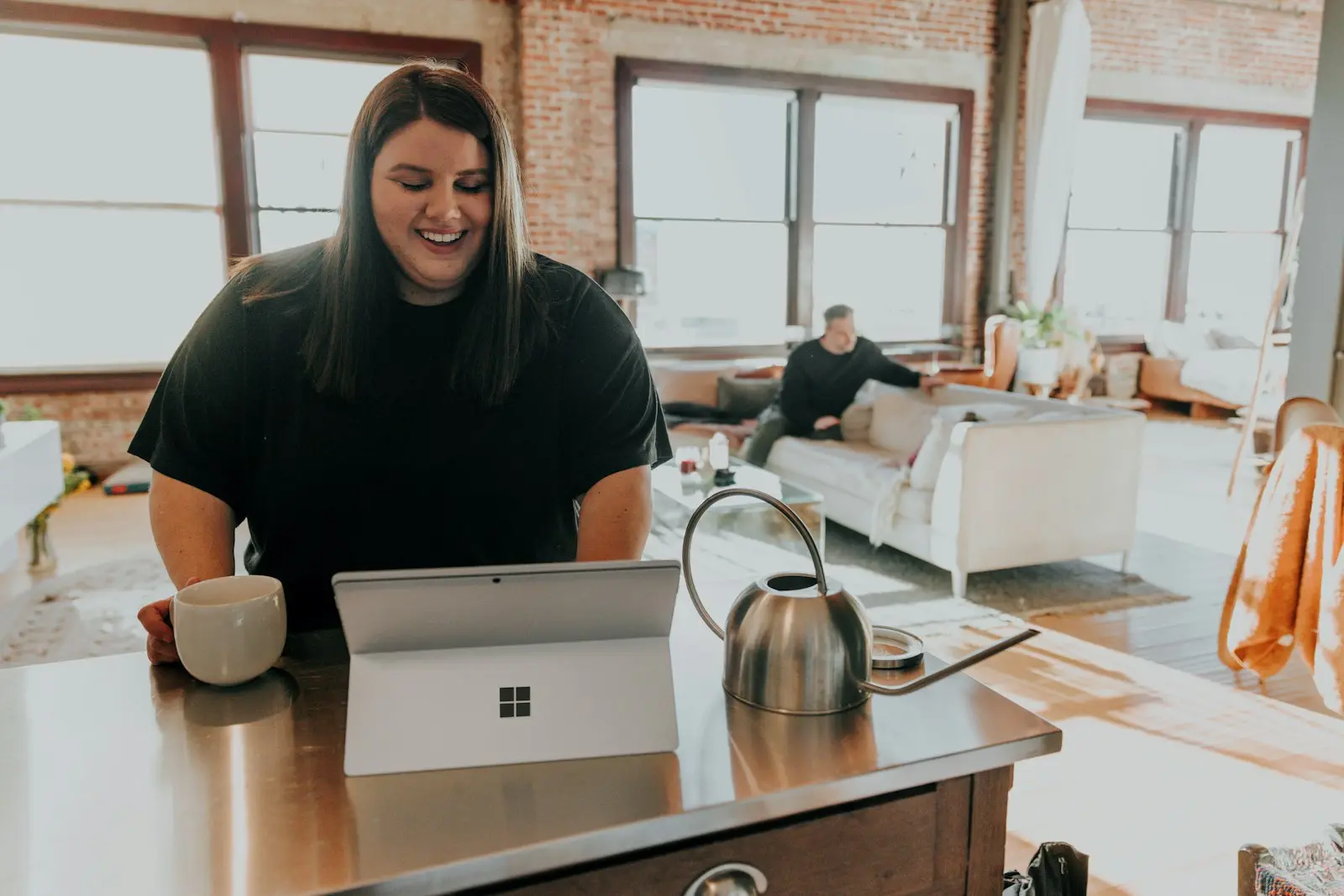
What a modern workplace means
Your people can work where the work is, without you worrying about where your business data ends up. Laptops, accounts and files are set up and monitored centrally, so replacing a device or bringing in a new colleague becomes routine instead of a project.
In practice: Microsoft 365 gets a clear structure for Teams, SharePoint and OneDrive, laptops are rolled out through Intune with Windows 11 and a fixed security baseline, and joiners and leavers follow a step-by-step plan we agree with you.
A new colleague's first working day
A new colleague should be able to work on the first morning, and someone who leaves should be signed off properly on the last day. This is how we handle it.
The same steps apply to everyone, including a student worker or a temporary hire. That way it does not depend on who happens to remember that week.
- 1Two weeks ahead
You pass on name, role and start date
An email to the service desk is enough. Together we decide which licence, applications and shared folders go with that role, so we do not have to ask again next time.
- 2The week before
Account and permissions are ready
The Microsoft 365 account is created with the right licence, groups and access to Teams and SharePoint. MFA is ready to be set up at the first sign-in.
- 3A few days before
The laptop is ready and tested
The device is enrolled in Autopilot and Intune, with the security baseline and the applications for that role. We test sign-in, mail and files before it reaches your colleague.
- 4First working day
Sign in, and get straight to work
Your colleague signs in with the company account and sets up MFA. Outlook, Teams and the right folders are ready, and anyone with a question reaches the service desk straight away.
- 5On leaving
Access removed, data kept
At the agreed time, access is closed and the licence freed up. Mailbox and files go to whoever needs them, and the device comes back, wiped and ready for the next user.

Why this matters for your business
Searching is lost working time
Files in email attachments, on USB sticks and in three different folders cost minutes every day that nobody measures.
A lost laptop should not be a data breach
With encryption and remote management you lock and wipe a device before anyone else can look inside. The files simply stay in OneDrive.
Hybrid working needs structure
People working from home deserve the same access and the same security as at the office, without detours via personal email or a USB stick.
What we manage for your workplace
Every colleague works on a device and in an environment that we have set up, secured and documented.
Microsoft 365 tenant
Laptops & Windows 11
Teams & SharePoint
OneDrive & files
Users & licences
Phones & tablets
How it is set up
The details below are for IT managers and technical decision-makers. If that is not you, feel free to skip this.
Microsoft 365 runs on Microsoft Entra ID with MFA for every user and conditional access based on device status and location. Admin rights sit on separate accounts, and guest access is arranged per team or site.
New laptops are registered through Windows Autopilot and configure themselves as soon as the user signs in. Intune enforces a fixed configuration: BitLocker encryption, Defender, firewall, update policy and the standard applications per role.
Quality and feature updates are rolled out in rings, first to a small pilot group and then to the rest of the business. Microsoft 365 Apps follow a fixed update channel, so nobody suddenly finds a different menu.
Teams and SharePoint sites follow an agreed layout per department or project, with owners and permissions at group level rather than per person. Migrations from a file server or another cloud service happen in phases, with a check of permissions and paths after each phase.
Phones and tablets get app protection policies, so business data in Outlook, Teams and OneDrive stays shielded from personal apps. Company devices are fully enrolled, personal devices only at app level.
Questions we get
Not necessarily. Sometimes a local server is still needed for a specific package, and then we build the workplace around it. We only move files to SharePoint and OneDrive if that suits the way you work better.
We migrate in phases and usually outside working hours: mail first, then files, per team or department. Before each phase you know what will change, and after the switch we are ready for questions.
Yes, if they support Windows 11 and still run smoothly. We enrol them in Intune and bring them up to the same security baseline as new devices. Anything that can no longer keep up goes into a replacement plan.
Yes. In a small team especially, nobody has time to keep track of accounts, licences and devices. The setup stays the same, the scale adapts.
The setup is a one-off project, and the management afterwards a recurring agreement based on users and devices. We discuss the price once we have seen your environment.
Let us look at how your team works today.
We go through your Microsoft 365, your devices and your joiners and leavers, and tell you what we would fix first.